


Freshdesk Ticketing System Setup Guide 2026
Freshdesk is a cloud-based customer support platform that turns incoming customer messages into organized, trackable tickets. It pulls conversations from email, chat, phone, and social media into one shared workspace.
Support teams assign, respond to, and resolve requests without switching between tools.
Ever feel like your support inbox is a group chat nobody asked to join?
Seventeen threads, zero ownership, same customer emailing three times?
Meet Freshdesk: the ticketing system that transforms chaos into an organized queue. Every request has an owner, status, and finish line.

No dry feature list here. This Freshdesk ticketing system tutorial covers setup from scratch: channels, agents, automations, knowledge base, and reporting.
Your team goes from scattered to sorted without lengthy implementation.
Take our customer support ops assessment to benchmark your current setup.
What is the Freshdesk ticketing system?
Freshdesk is a cloud-based customer support software platform from Freshworks. It converts incoming customer messages into support tickets. These records include the customer's message, contact details, conversation history, status, priority, and assigned agent.
A ticketing system captures customer issues as individual trackable items. Instead of living in a shared inbox or spreadsheet, each request becomes a ticket. It has a unique ID and moves through a defined workflow from open to resolved.
Freshdesk sits in the Freshworks product suite alongside Freshservice, which handles internal IT service management. Freshdesk handles external customer support. Freshservice handles internal employee requests and IT operations.
The four core building blocks of the Freshdesk ticketing system:
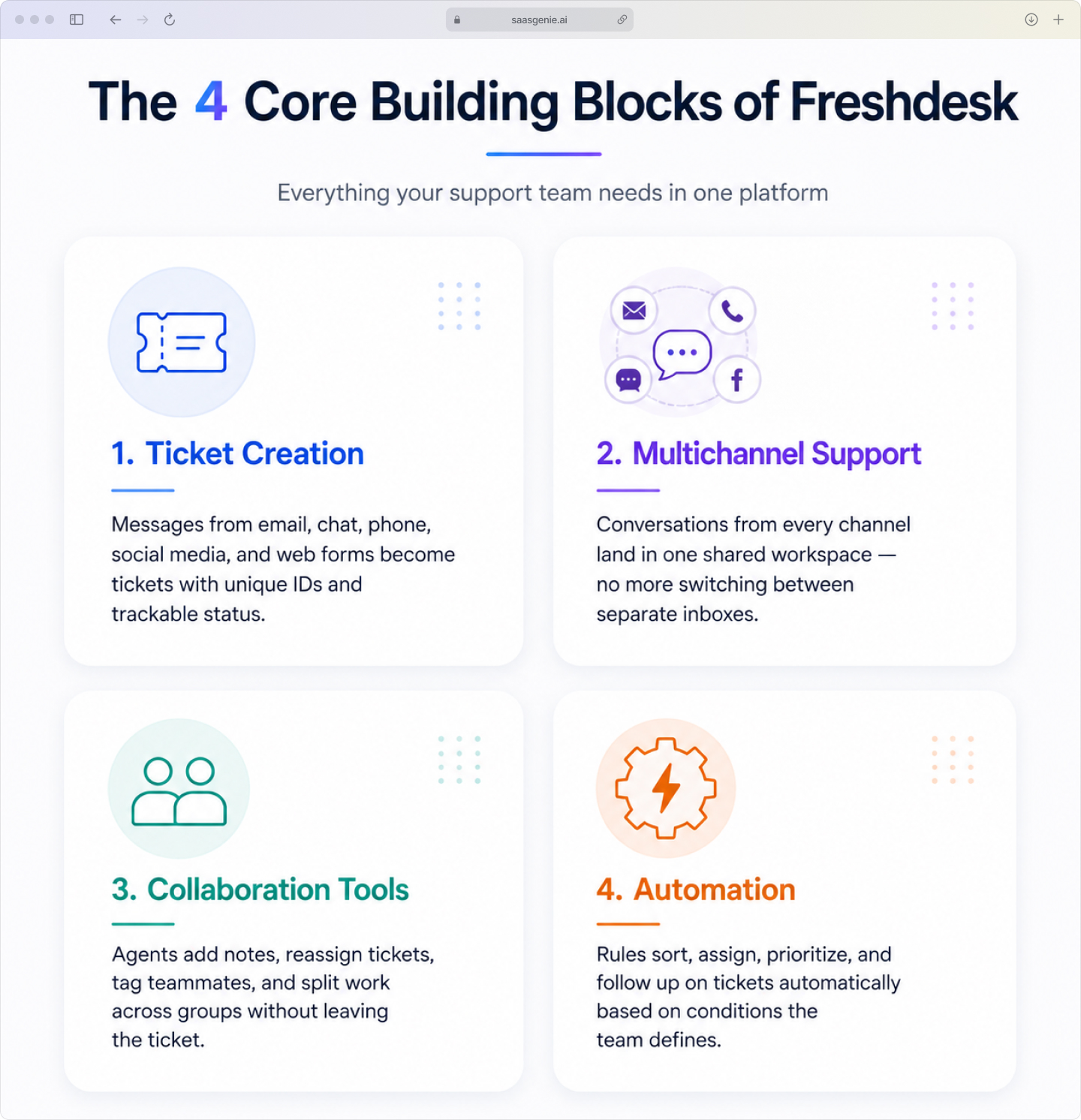
- Ticket creation: Messages from email, chat, phone, social media, and web forms become tickets with unique IDs and trackable status.
- Multichannel support: Conversations from every channel land in one shared workspace instead of separate inboxes.
- Collaboration tools: Agents add notes, reassign tickets, tag teammates, and split work across groups without leaving the ticket.
- Automation: Rules sort, assign, prioritize, and follow up on tickets automatically based on conditions the team defines.
Why support teams choose Freshdesk
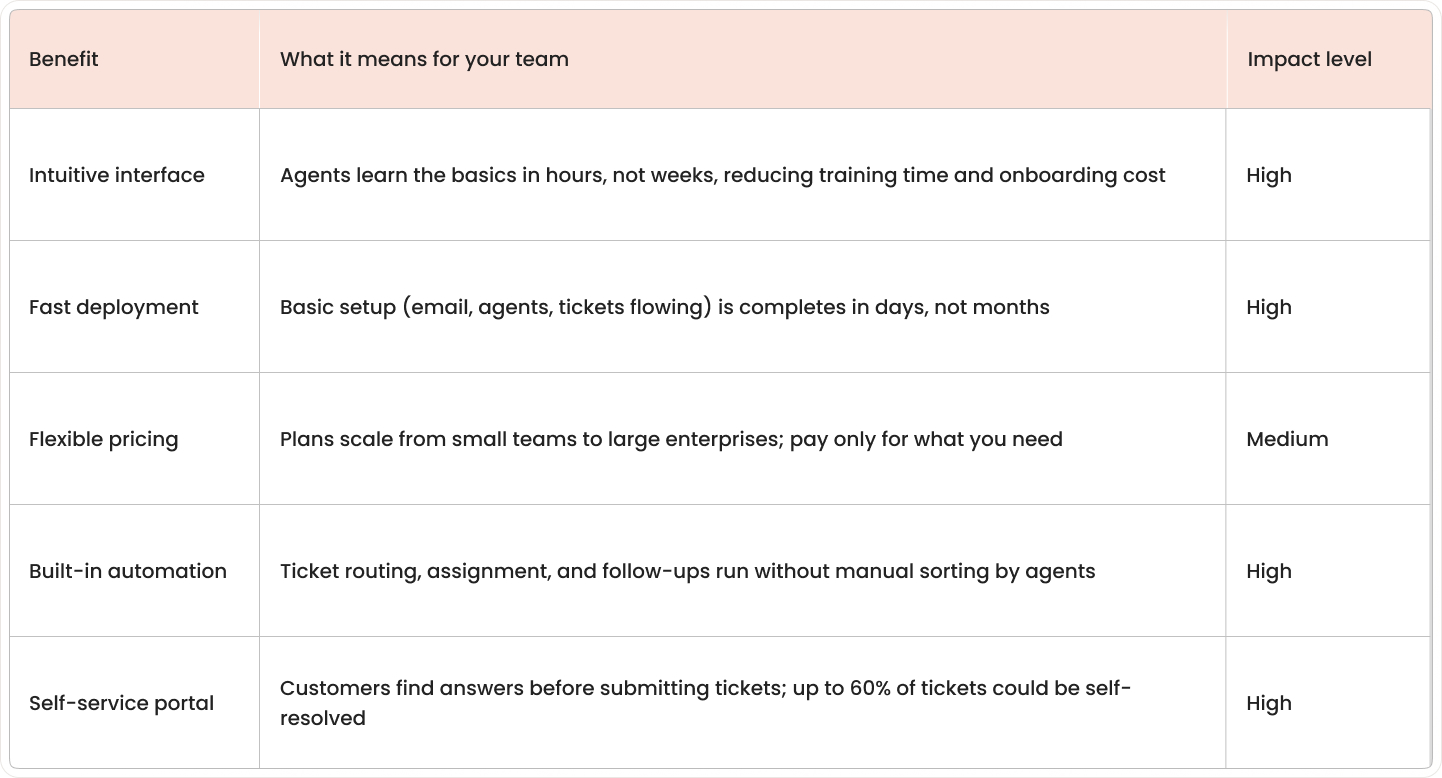
Freshdesk is often chosen for faster setup and easier agent onboarding than most enterprise platforms. Basic setup, email, agents, tickets flowing, completes in days, not months.
Freshdesk also scales across team sizes. Both small and large teams run on Freshdesk.
Plan options match different workflow complexity and reporting depth levels.
See our implementation ops assessment to find the right fit.

The self-service portal is another common reason teams pick Freshdesk. Customers search articles, submit tickets, and check status without contacting an agent. This reduces repetitive questions and frees the queue for complex work, since up to 60% of tickets could be self-resolved.
What to prepare before setting up Freshdesk:
Freshdesk setup moves faster when basic items are gathered first. Missing credentials, incomplete agent lists, or unclear hours are common reasons setups stall.
A simple Freshdesk Pre-Setup Checklist: Gather these 5 items before touching admin settings.

Pro Tip: Keep all details in one document before your first admin session. It makes setup significantly faster.
- Support email address: The inbox to connect, like support@company.com, with credentials and forwarding access.
- Team roster: Names, emails, and roles for every person working in Freshdesk.
- Logo and brand colors: Logo file, favicon, and hex codes for portal customization.
- Existing tickets or FAQs: Open tickets, replies, articles, or customer history to migrate.
- Business hours: Support schedule with days, hours, time zones, and regional variations.
Some teams keep one document with all details before touching the admin settings. This makes the first session smoother. Visit our support ops assessment for a structured readiness check.
How to follow this Freshdesk ticketing system tutorial step by step
This section covers the first setup sequence: account creation to a closed test ticket. This Freshdesk ticketing system tutorial follows the path most new teams take during an initial rollout.
Step 1: Sign up and log in to your Freshdesk account
Start on the Freshdesk signup page to create a trial account with your work email and company name. Freshdesk generates a default subdomain automatically.
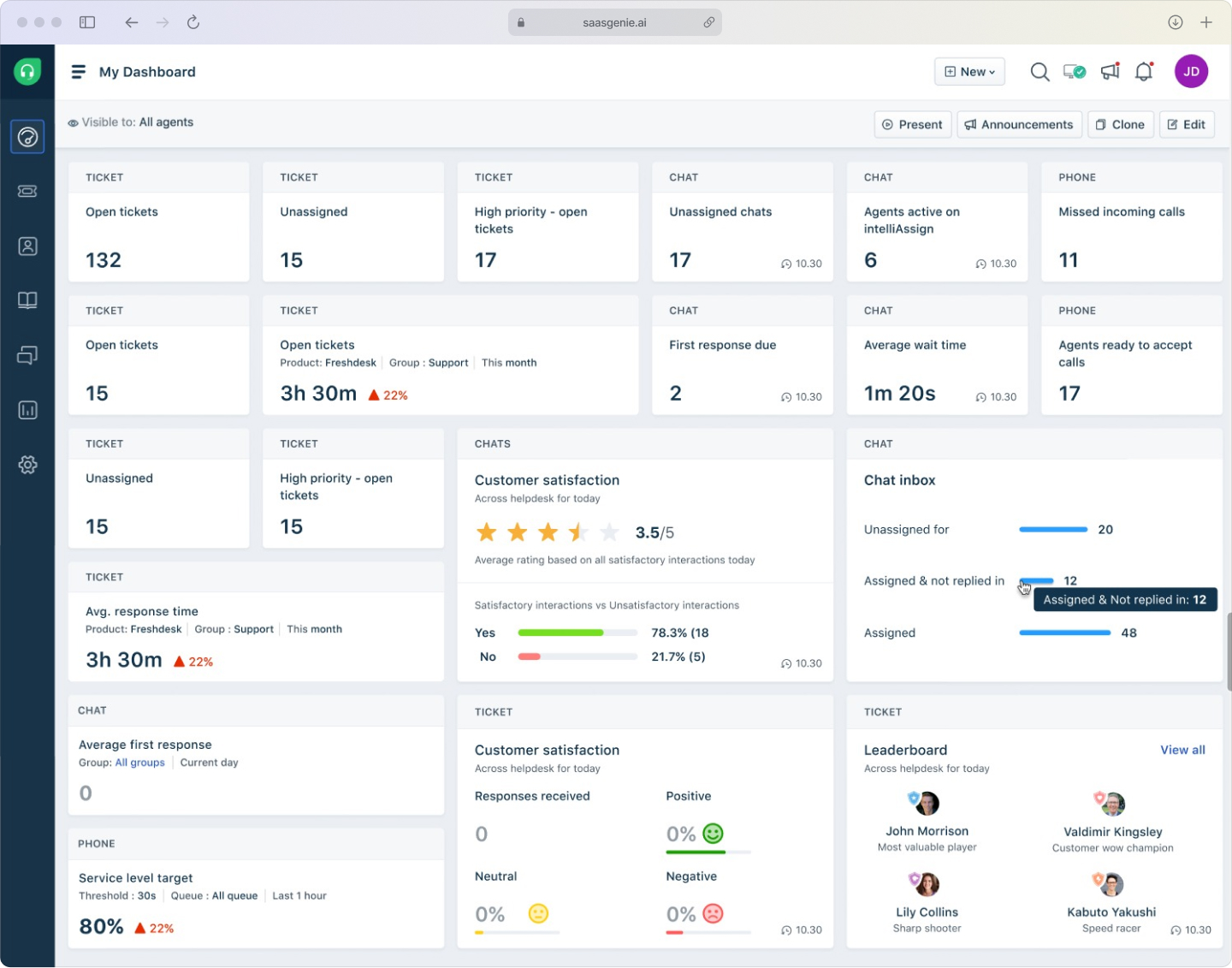
After verification, the first login opens the admin dashboard. Freshdesk displays a setup checklist to guide initial configuration steps.
Step 2: Connect your support email inbox
Linking the support inbox makes incoming emails become tickets automatically. Freshdesk offers email forwarding or a direct mailbox connection based on your mail system.
After the inbox is linked, incoming messages become tickets. They include the sender's name, subject line, message body, and attachments. Test with a short email to confirm ticket creation and replies work.
Step 3: Tour the Freshdesk dashboard
Once the email is connected, each navigation section has a clear purpose:
- Tickets: The daily workspace with open, pending, resolved, and closed queues with filters.
- Contacts: Customer records with names, emails, company details, and ticket history.
- Solutions: The knowledge base with help articles and self-service content.
- Reports: Ticket volume, response times, resolution times, and agent activity.
- Admin: Configuration settings: channels, automations, roles, portal design, SLAs, and security.
Step 4: Submit your first test ticket
A test ticket sent through the support email confirms the full workflow from both sides. Freshdesk creates a new ticket with the subject, requester name, timestamp, and ID.
Check these during the test: the sender name displays correctly, attachments come through, automations apply the right group or priority, and the confirmation email reaches the requester.
Step 5: Resolve and close the ticket
Inside the ticket view, add a reply in the conversation panel. Status changes as work progresses: Open (issue arrives), Pending (waiting on customer), Resolved (work done), Closed (fully finished).
Freshdesk keeps public replies and internal notes together. Public replies reach the customer; private notes stay internal. A completed test ticket confirms basic setup works end-to-end.
How to configure support channels in Freshdesk
Beyond email, Freshdesk collects conversations from live chat, phone, social media, and a website widget. All feed into the same shared workspace.
Channel overview:
- Email: The primary channel for tickets from forwarding or a direct mailbox connection.
- Live chat: Handled through Freshchat for real-time conversations.
- Phone: Handled through Freshcaller for call logging and customer records.
- Social channels: Facebook and X accounts connect for direct messages and comments.
- Website widget: A support panel with a contact form, a knowledge base search, and ticket submission.
Configure each channel from the admin area. Test each active channel: email, chat, phone, social, and portal form.
This confirms routing and ticket creation work before going live.
How to add agents, groups, and roles in Freshdesk
User management controls login access, permissions, and ticket routing between teams. Three building blocks: agents, groups, and roles.
- Agent: A team member who works on tickets.
- Group: A team or queue, like Billing or Technical Support, for ticket routing.
- Role: A permission level controlling actions like replying, viewing reports, and changing settings.
Freshdesk separates team structure from permissions. A person belongs to multiple groups; their role controls account access.
Default roles in Freshdesk:
- Admin: Full access to settings, channels, automations, security, and reporting.
- Supervisor: Monitors queues, reviews performance, and manages tickets across groups.
- Agent: Works on assigned tickets within their group access.
Add agents from the admin area by entering their work email and sending invitations. Create groups with a name, description, and member list. Custom roles are available when defaults don't match your structure.
How to automate tickets with Dispatch'r, SLA policies, and canned responses
Freshdesk automation handles repeated actions through rules, not manual updates. Main tools: Dispatch'r for routing, SLA policies for deadlines, canned responses, and macros for faster replies.
Dispatch'r rules for auto-routing
Dispatch'r automates ticket creation. It checks each ticket against conditions and applies actions automatically.
Example: if the subject contains "invoice" or "refund," assign to Billing and set priority High. Another rule routes chat tickets to live support and form tickets to general support.
Rule order matters. Earlier rules affect how later ones apply.
SLA policies and business hours
SLA stands for Service Level Agreement. It defines targets for first response time and resolution time.
SLA policies are usually set by ticket priority. Low-priority questions might have a 24-hour target. Urgent issues might have a two-hour target, critical since 89% of customers expect responses within one hour.

Business hours tell Freshdesk when the team is available.
SLA timers count only during active hours, not weekends.
Near SLA breach, Freshdesk can trigger alerts, reassign, or escalate automatically.
Canned responses and macros
Canned responses are saved templates for common questions: resets, shipping, refunds, and verification. Agents select, edit case details, and send. Typing is eliminated without feeling generic.
Macros do more. A single macro can insert a reply, change status, assign to a group, add a tag, and update priority, all at once. A refund macro might send acknowledgment, assign to Billing, add a "refund" tag, and set status to Pending in one click.
How to build a Freshdesk knowledge base for self-service
The knowledge base lives in Solutions and stores articles in categories and folders. A category is the broadest level: Account Management or Product Support.
A folder sits inside a category: Login Issues or Subscription Changes. An article sits inside a folder covering one specific task or question.
Building the knowledge base:
- Folder structure: Organize around customer search terms, not internal department names.
- Article editor: Add title, body, attachments, visibility, and publishing controls. Include images, steps, and videos.
- SEO settings: Use customer search words in titles to improve Google and portal visibility.
- Email to knowledge base: Convert strong replies to articles. Remove details, add structure, publish.
A well-organized knowledge base reduces incoming volume because customers find answers first. 91% of customers use online knowledge bases when available.
Review ticket tags and patterns regularly to identify article gaps.
Read our blog for knowledge base best practices.
How to track support performance in the Freshdesk dashboard
Freshdesk reporting shows team performance through dashboards, charts, and filters.
Key metrics in the Freshdesk dashboard:
- Ticket volume: Incoming request count by day, source, priority, or group.
- First response time: How quickly agents reply after ticket creation.
- Resolution time: How long tickets stay open before resolution.
- Agent workload: Open, resolved, and overdue ticket counts per team member.
- Customer satisfaction (CSAT): Survey scores after resolution, shown as trends by agent or group.
Trend charts make patterns easier to read. Patterns become visible when data is reviewed by week or month.
Spikes after updates, drops during holidays, or growing backlogs show clearly.
Use our CS ops assessment to evaluate your reporting maturity.
How to secure Freshdesk with SSO and DKIM
Security settings control agent login, email authentication, and account access. Main setup areas: SSO, DKIM, SSL, and IP whitelisting.
Core security settings:
- Single Sign-On (SSO): Agents log in with company accounts (Entra ID, Google Workspace, Okta) instead of separate passwords. Disabled company accounts block Freshdesk access automatically.
- DKIM (DomainKeys Identified Mail): Signs outgoing emails so servers verify they came from your domain. Without DKIM, replies are flagged or land in spam.
- SSL certificates: SSL encrypts data between the browser and Freshdesk. Custom domains require SSL certificate mapping and verification.
- IP whitelisting: Limits admin access to approved networks: offices, VPNs, corporate addresses. Unapproved logins are blocked.
How to integrate Freshdesk with other tools

Freshdesk connects with tools through native apps and integrations. Set up integrations from the marketplace or admin settings.
Authorize, map fields, and test.
See our implementation assessment for integration planning guidance.
Slack and Microsoft Teams
Slack and Teams integrations post ticket events as messages in team channels. Route billing alerts to one channel and technical escalations to another.
CRM tools like Salesforce and HubSpot
CRM integrations link support activity with customer records in Salesforce and HubSpot. View account details, subscription status, and sales ownership without switching tabs. Synced fields: customer name, email, company, account owner, lifecycle stage.
Project tools like Jira and Trello
Jira and Trello integrations connect tickets with task boards. A bug ticket creates a linked Jira issue.
Development tracks the fix; support keeps the conversation in Freshdesk.
Jira status changes update the linked Freshdesk ticket, keeping records aligned.
Common Freshdesk setup mistakes and how to avoid them
Most setup problems come from planning gaps, not platform limits. This Freshdesk ticketing system tutorial covers the same five mistakes that appear regularly in early rollouts.
1. Skipping the pre-setup checklist
Starting before collecting credentials, agent details, hours, and assets leads to rework. A checklist prepared in advance keeps the setup stable.
2. Overcomplicating groups and workflows early
Too many groups, statuses, tags, and rules in the first week make queues harder to manage. Tickets land in the wrong place.
Start small with clear groups and basic automations.
Refine once patterns emerge.
3. Ignoring SLA policies and business hours
Without response targets or schedules, overdue tickets and alerts appear without context. SLA settings work best when they reflect actual schedules, including evenings, weekends, or time zones.
4. Forgetting to test before going live
Email, auto-assignment, notifications, forms, and formatting often show problems only with real tickets. Test each channel: email, chat, phone, social, portal. Catch errors before customers experience them.
5. Not onboarding agents before the queue fills up
New workspaces can produce missed notes, wrong updates, duplicates, and inconsistent tags during live support. A session on ownership, reply style, status, and escalation before go-live creates shared practices.
Freshdesk pricing and free plan options
Freshdesk has four plan tiers. As of 2026: Growth (automation), Pro (advanced reporting), Enterprise (security and governance).
See the Freshdesk pricing page for current details and pricing.

Set up Freshdesk faster with expert help from saasgenie
Some teams set up Freshdesk independently. Others work with partners to reduce configuration gaps.
saasgenie is a certified partner supporting setup, channels, automation, the portal, reporting, and roles. Migration covers tickets, contacts, agents, articles, and records. Field mapping preserves history and context.
Ongoing services cover workflow updates, admin support, channels, and automation reviews.
Book a free strategy call to map your setup, migration, or optimization goals.

Ready to set up Freshdesk the right way?
Book a free strategy call and we'll map your setup, handle migration, and get your team's lives faster, without the trial-and-error.